Day 42: IAM Programmatic access and AWS CLI 🚀
IAM Programmatic access
In order to access your AWS account from a terminal or system, you can use AWS Access keys and AWS Secret Access keys Watch this video for more details.
AWS CLI
The AWS Command Line Interface (AWS CLI) is a unified tool to manage your AWS services. With just one tool to download and configure, you can control multiple AWS services from the command line and automate them through scripts.
The AWS CLI v2 offers several new features including improved installers, new configuration options such as AWS IAM Identity Center (successor to AWS SSO), and various interactive features.
Task-01
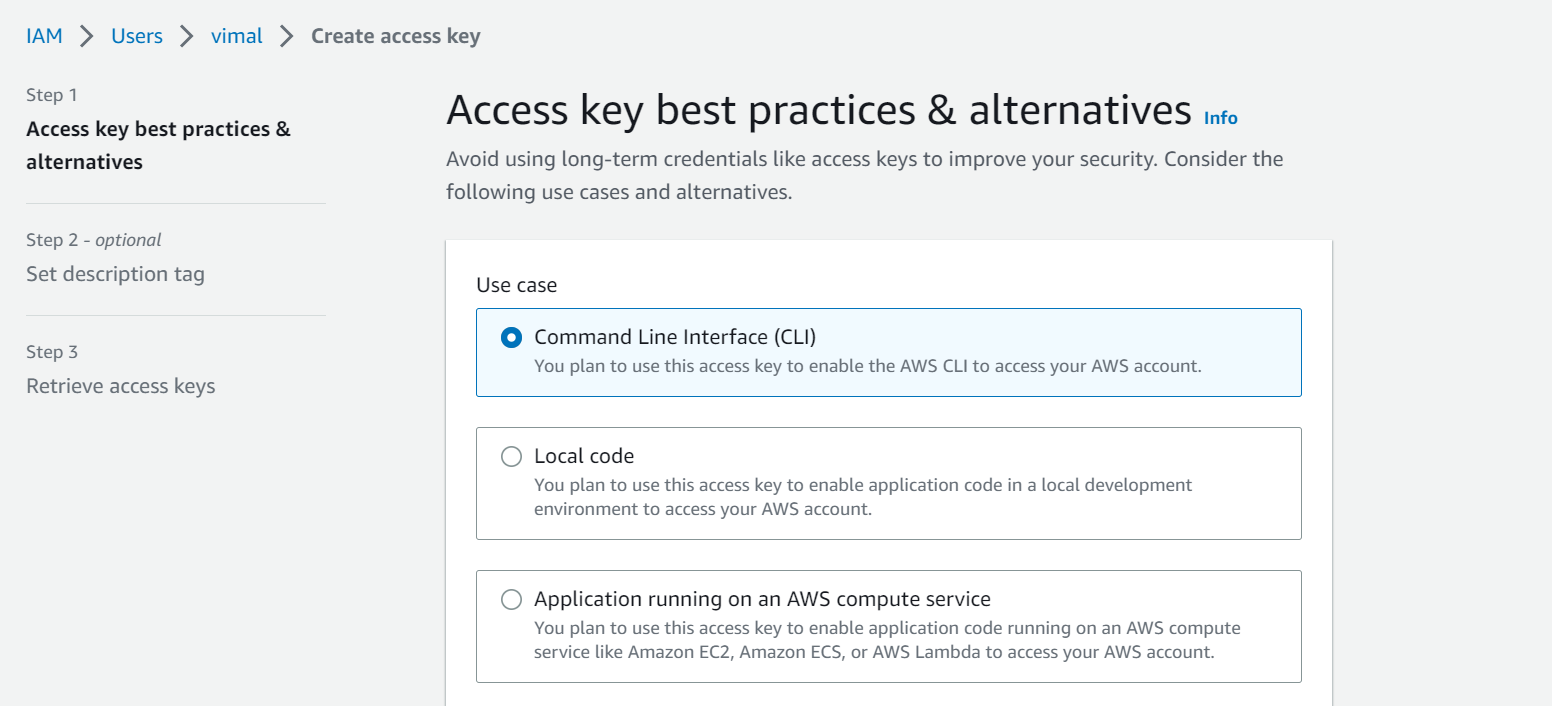
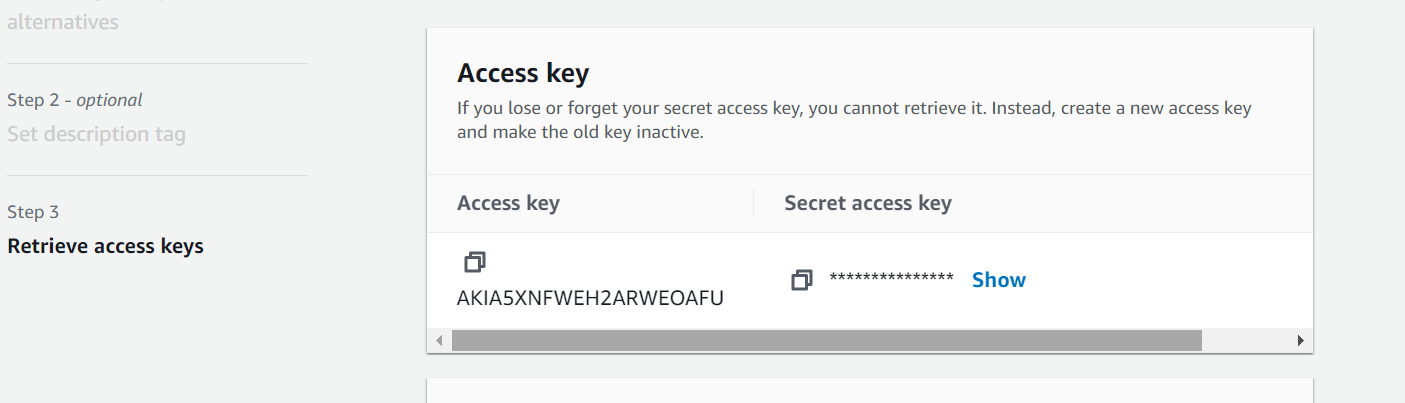
Create AWS_ACCESS_KEY_ID and AWS_SECRET_ACCESS_KEY from AWS Console.
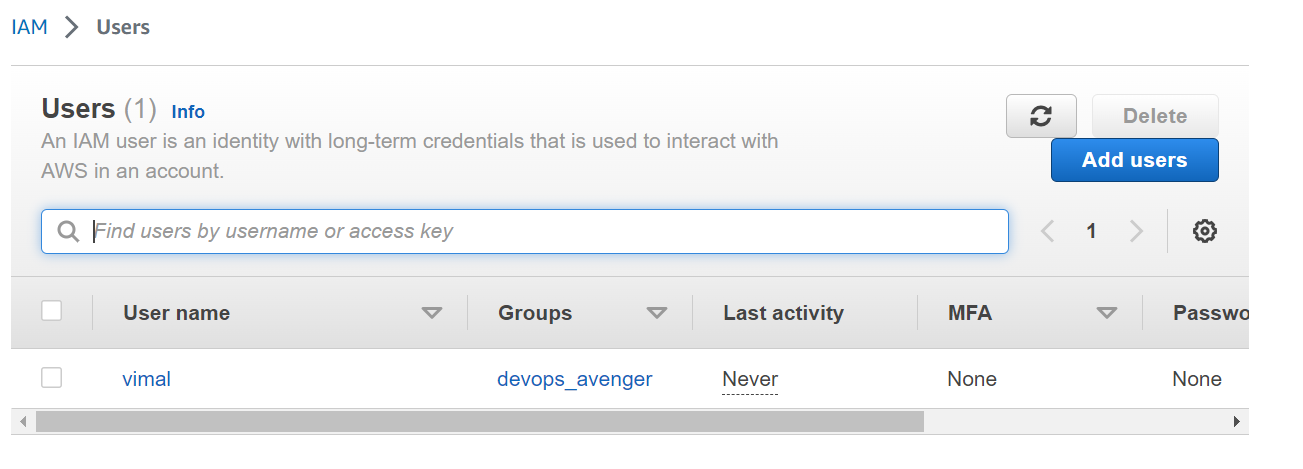
firstly we create the user "Vimal" and In the user profile we will create access key.
Task-02
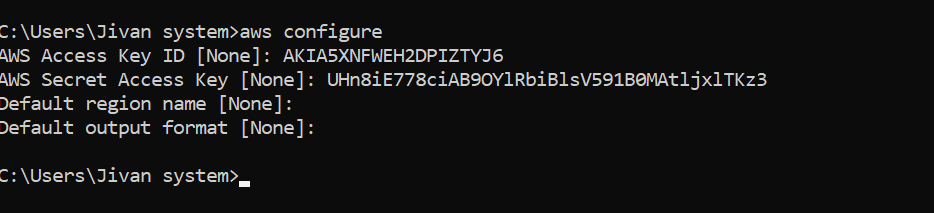
Setup and install AWS CLI and configure your account credentials
To access the AWS cli .firstly we should have to install aws cli through the terminal.
If you have an earlier version of AWS CLI, then use the following command to install the latest AWS CLI version 2. For other installation options, or to upgrade your currently installed version 2, see Upgrading the AWS CLI version 2 on Windows.
Download the AWS CLI MSI installer for Windows (64-bit) at https://awscli.amazonaws.com/AWSCLIV2.msi
Run the downloaded MSI installer and follow the onscreen instructions. By default, the AWS CLI installs to C:\Program Files\Amazon\AWSCLIV2.
If you're unable to use the AWS CLI version 2, then ensure that you have the latest version of the AWS CLI version 1 installed using the following command.
pip3 install --user --upgrade awscli
configure your AWS cli using access key.
Thank You for reading!!